
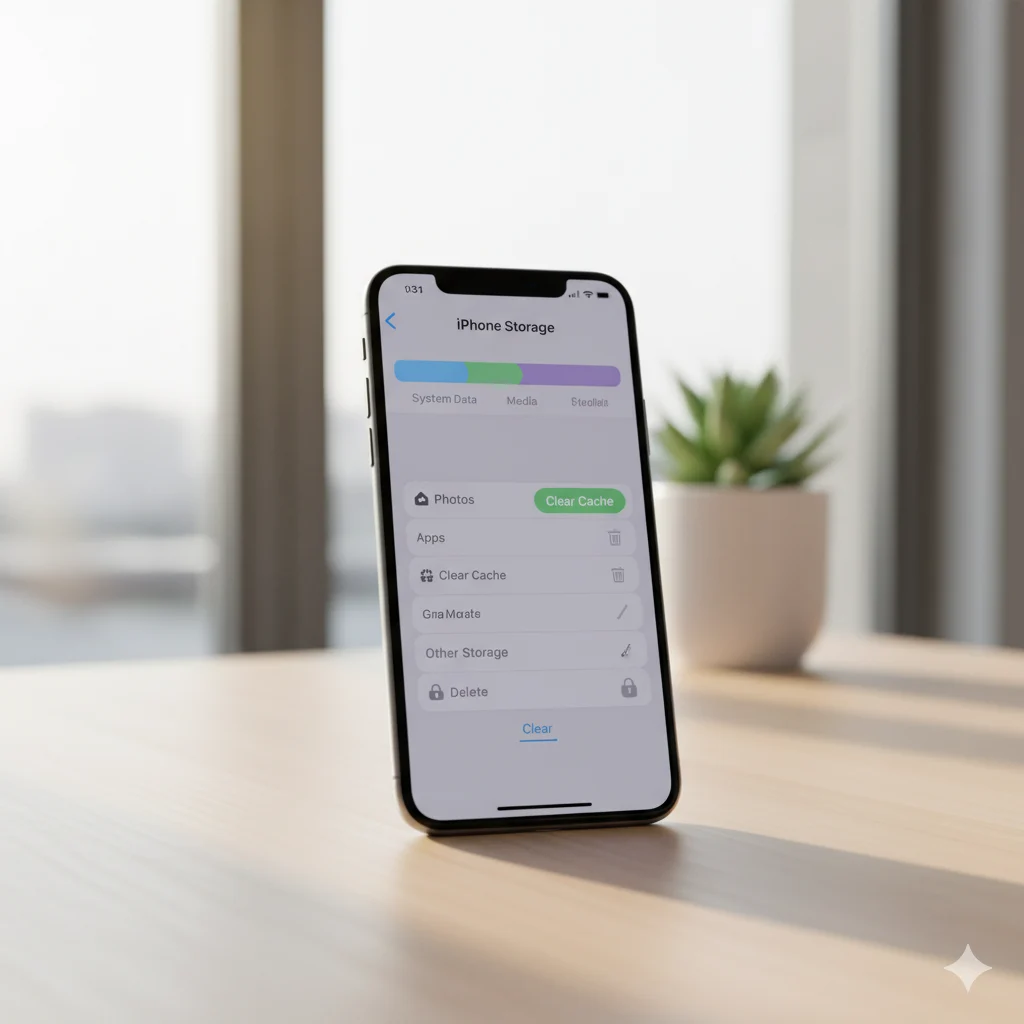

iPhones are powerful and elegant devices, but over time, cached data can accumulate and slow them down. From apps to Safari and system processes, unnecessary cache takes up storage, affects performance, and may even cause app glitches. Knowing how to clear cache on iPhone is essential for maintaining speed, freeing space, and ensuring a smooth experience.
This step-by-step guide will help you clear Safari cache, app cache, and system cache, understand storage management, and prevent future bloat. By the end, your iPhone will run faster, storage will be optimized, and you’ll have the tools to keep it that way.
Why Clearing Cache on iPhone Is Important
Cache is essentially temporary data that helps apps and iOS operate more efficiently. While useful, excessive cache can lead to slowdowns, storage issues, and minor bugs. Here’s why clearing it matters:
- Boost Performance: Cached files can slow down apps and system operations. Removing them improves speed.
- Free Up Storage Space: Cache can take gigabytes of storage over time, limiting space for apps, photos, and videos.
- Resolve App Glitches: Outdated cache may cause apps like Instagram, WhatsApp, or Spotify to crash or freeze.
- Enhance Privacy: Cached files may contain sensitive data. Regular clearing protects your privacy.
Pro Tip: Monthly cache clearing is a simple habit that keeps your iPhone responsive and secure.
Understanding Cache on iPhone
Cache can be categorized into three main types:
- App Cache: Temporary files stored by apps to load content faster. Over time, this can take up large amounts of storage.
- Browser Cache: Safari and other browsers save website data (images, cookies, scripts) to improve page load speeds.
- System Cache: iOS stores temporary files to optimize system operations, updates, and background tasks.
Understanding these distinctions allows you to target each type effectively.
How to Clear Safari Cache on iPhone
Safari, being the default browser, stores cookies, history, and cached website data. Clearing this periodically enhances speed and privacy.
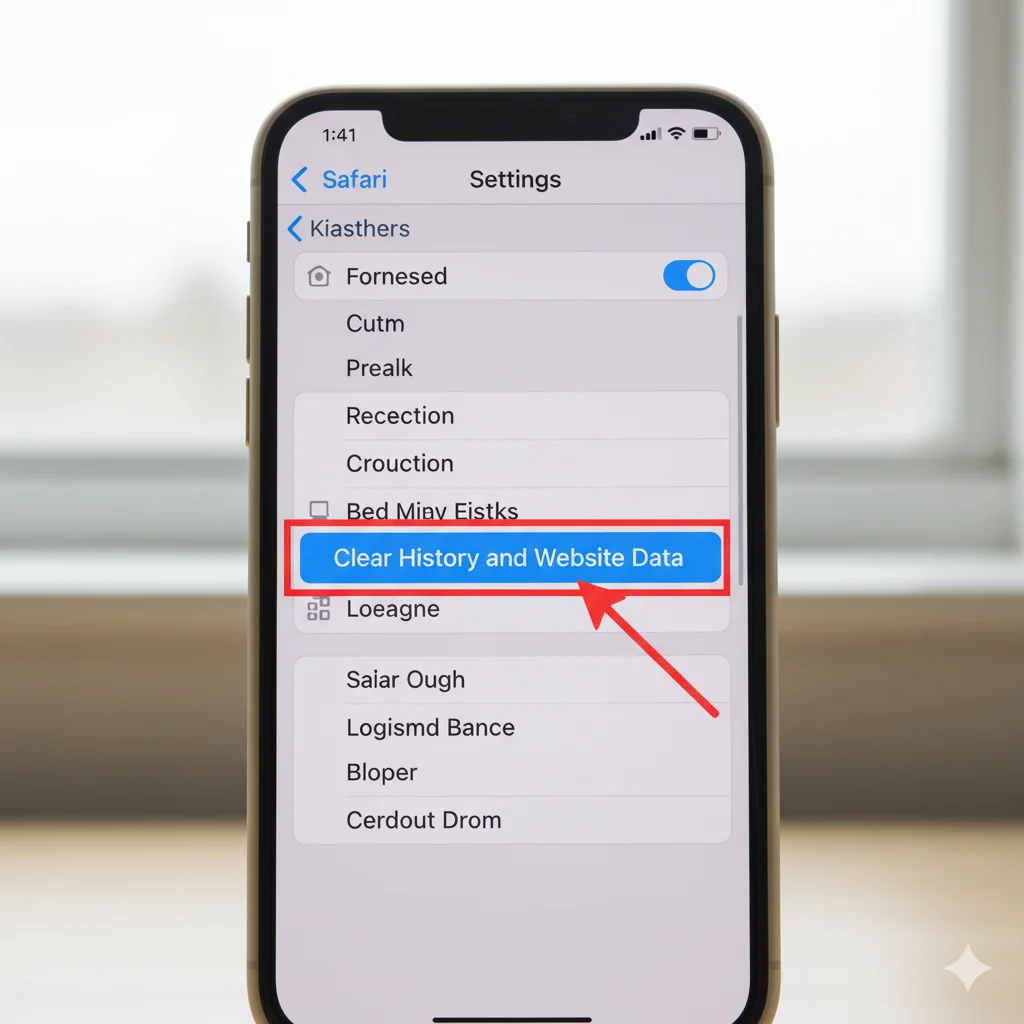
Step-by-Step Guide:
- Open Settings on your iPhone.
- Scroll down and tap Safari.
- Select Clear History and Website Data.
- Confirm by tapping Clear History and Data.
Tip: Clearing Safari cache won’t remove saved passwords in iCloud Keychain. It’s safe to perform monthly for better browsing speed and privacy protection.
Pro Insight: If Safari is still slow after clearing cache, consider disabling background app refresh for other apps in Settings > General > Background App Refresh.
How to Clear App Cache on iPhone
iOS does not provide a one-click way to clear app cache like Android. But effective workarounds exist:
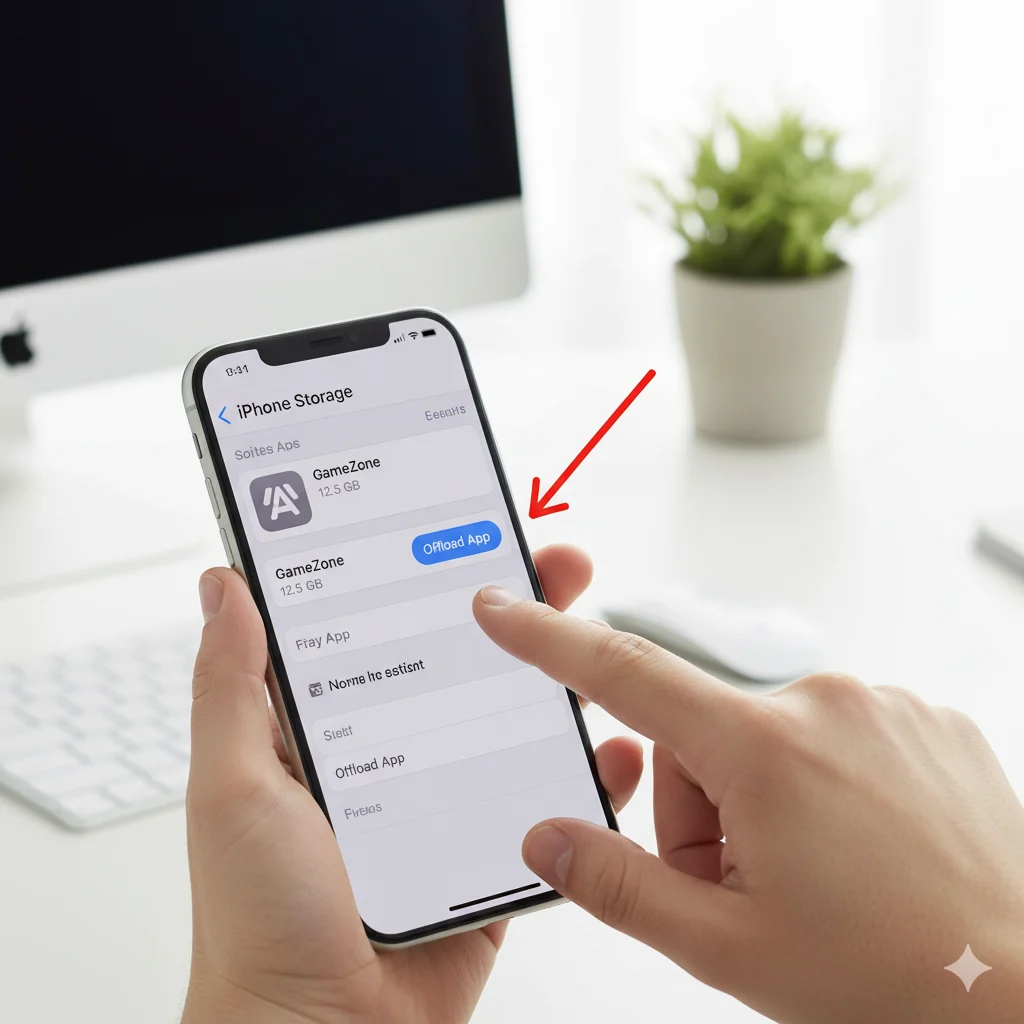
1. Offload Unused Apps
Offloading removes the app but keeps its data, freeing storage and clearing cached files.
Steps:
- Go to Settings > General > iPhone Storage.
- Select an app using large storage.
- Tap Offload App and confirm.
- Reinstall the app from the App Store.
Example: Offloading Spotify or Instagram can free several hundred MBs without losing your account info.
2. Reinstall Apps
Manually deleting and reinstalling apps clears all cached data.
Steps:
- Tap and hold the app icon.
- Select Remove App > Delete App.
- Reinstall from the App Store.
Tip: Use this method for apps with large caches causing slowdowns or glitches.
3. Clear In-App Cache
Some apps allow in-app cache clearing:
- WhatsApp: Settings > Storage and Data > Manage Storage > Clear items.
- Spotify: Settings > Storage > Delete Cache.
- TikTok: Settings > Free up space > Clear Cache.
Pro Tip: Regularly clearing these app caches prevents bloat without affecting your account.
How to Clear System Cache on iPhone
System cache includes temporary files used by iOS to improve functionality. While iOS manages this automatically, you can help optimize manually.
Methods:

- Restart iPhone: A simple restart clears minor system cache and speeds up performance.
- Update iOS: Go to Settings > General > Software Update. Updates often optimize cache management.
- Reset All Settings (Optional): Settings > General > Reset > Reset All Settings clears system cache without affecting personal data.
Pro Tip: Weekly restarts keep your iPhone running efficiently.
Managing Storage to Prevent Cache Buildup
- Monitor Storage Usage: Settings > General > iPhone Storage shows apps using the most space. High usage often means heavy cached data.
- Enable Offload Unused Apps: Automatically removes unused apps to manage storage and cache.
- Delete Old Messages and Downloads: Removing unnecessary files reduces storage strain.
- Clear Temporary App Files: Apps like Instagram, TikTok, and YouTube allow clearing cache directly in settings.
Example: A 1GB WhatsApp cache can be reduced to 100MB by periodically clearing media and temporary files.
Benefits of Regular Cache Clearing
- Improved Performance: Apps and iOS run smoothly.
- More Free Space: Recovered storage for apps, photos, or videos.
- Enhanced Privacy: Temporary data containing personal info is removed.
- Bug Fixing: Outdated cached files no longer cause crashes or glitches.
Common Mistakes to Avoid
- Deleting Frequently Used Apps Unnecessarily: Use offload instead of delete to save time and preserve data.
- Ignoring Safari Cookies: Clearing cache without consideration may log you out of important sites.
- Skipping iOS Updates: Updates improve automatic cache management and system optimization.
- Not Backing Up Before App Reinstallation: Always ensure data is safe before deleting apps.
Advanced Tips for iPhone Cache Optimization
- Use Low-Storage Mode: Settings > Battery > Low Power Mode reduces background cache creation.
- Clear Large Media Files: Videos, downloads, and offline content create hidden cache. Removing them helps.
- Monitor Third-Party Apps: Some apps create more cache than others — Instagram, YouTube, Spotify. Regular maintenance is key.
FAQs About Clearing Cache on iPhone
Q: Will clearing cache delete my photos or contacts?
A: No. Only temporary data is removed. Photos, contacts, and app data remain intact.
Q: How often should I clear cache?
A: Monthly is recommended. Heavy app users may clear it biweekly.
Q: Does clearing cache improve battery life?
A: Indirectly. Less system strain can slightly enhance battery performance.
Q: Can I use third-party apps to clear cache?
A: iOS restrictions limit functionality. Manual clearing is safer and more reliable.
Q: Does clearing cache log me out of apps?
A: App data remains intact unless the app is deleted. Safari may log you out.
Final Thoughts
Understanding how to clear cache on iPhone is essential for performance, storage, and privacy. By clearing Safari, app, and system cache, performing regular maintenance, and following advanced tips, your iPhone will remain fast, secure, and optimized.
Make cache clearing a monthly habit, monitor storage regularly, and enjoy smoother iPhone performance with minimal effort. Your device deserves it!