
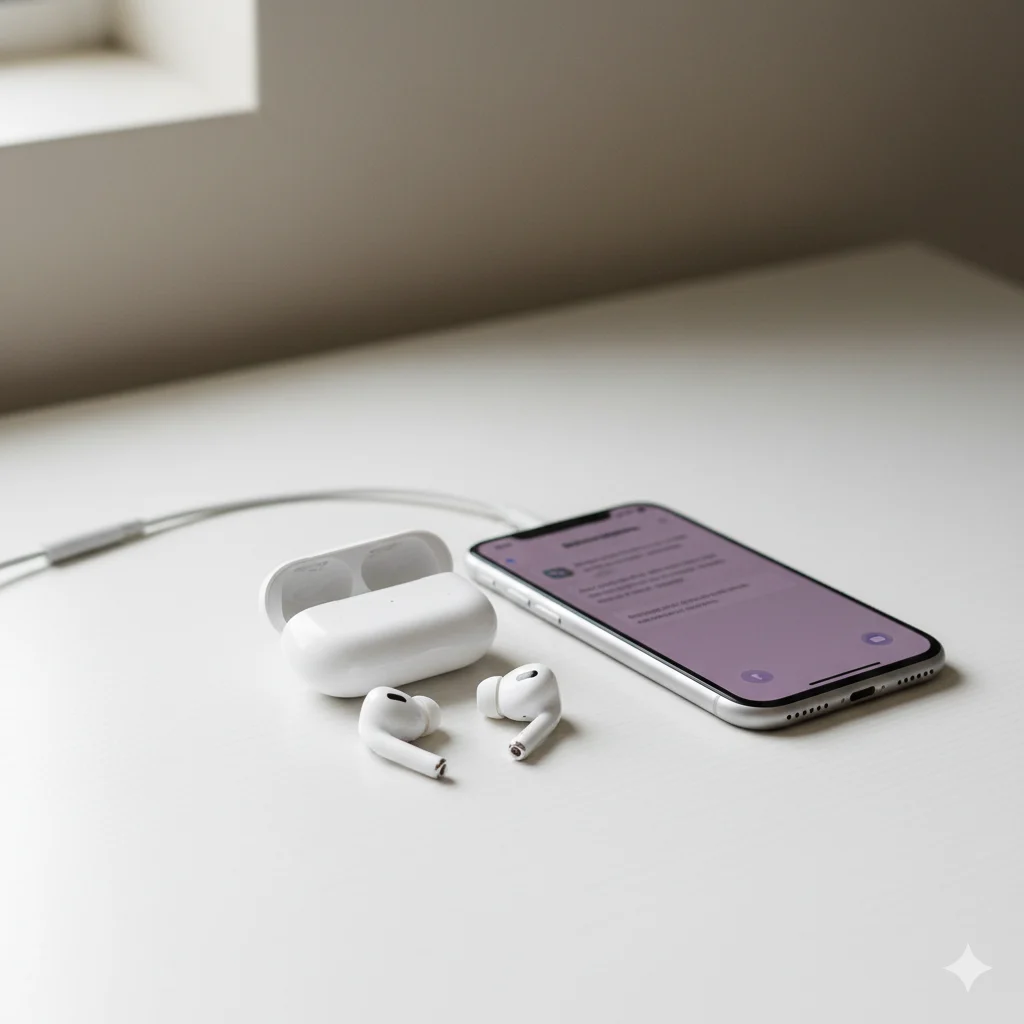

Resetting your AirPods is one of the quickest ways to fix connection issues, sync problems, or prepare them for a new owner. Whether your AirPods aren’t pairing, only one side works, or you just want to start fresh, this guide will walk you through every step.
In this easy, expert-written tutorial, you’ll learn exactly how to reset AirPods (including Pro and Max models), discover insider tips, and solve common problems—all explained in simple, practical language. Let’s begin.
Step 1: Charge and Prepare Your AirPods
Before resetting, place both AirPods in their charging case and close the lid for at least 30 seconds. Make sure the case has enough battery—ideally over 50%.
This quick charge ensures that your AirPods and case have the power needed to complete the reset successfully. Once you’re ready, keep the case nearby with the lid open.
Step 2: Unpair from Your Device
On your iPhone, iPad, or Mac:
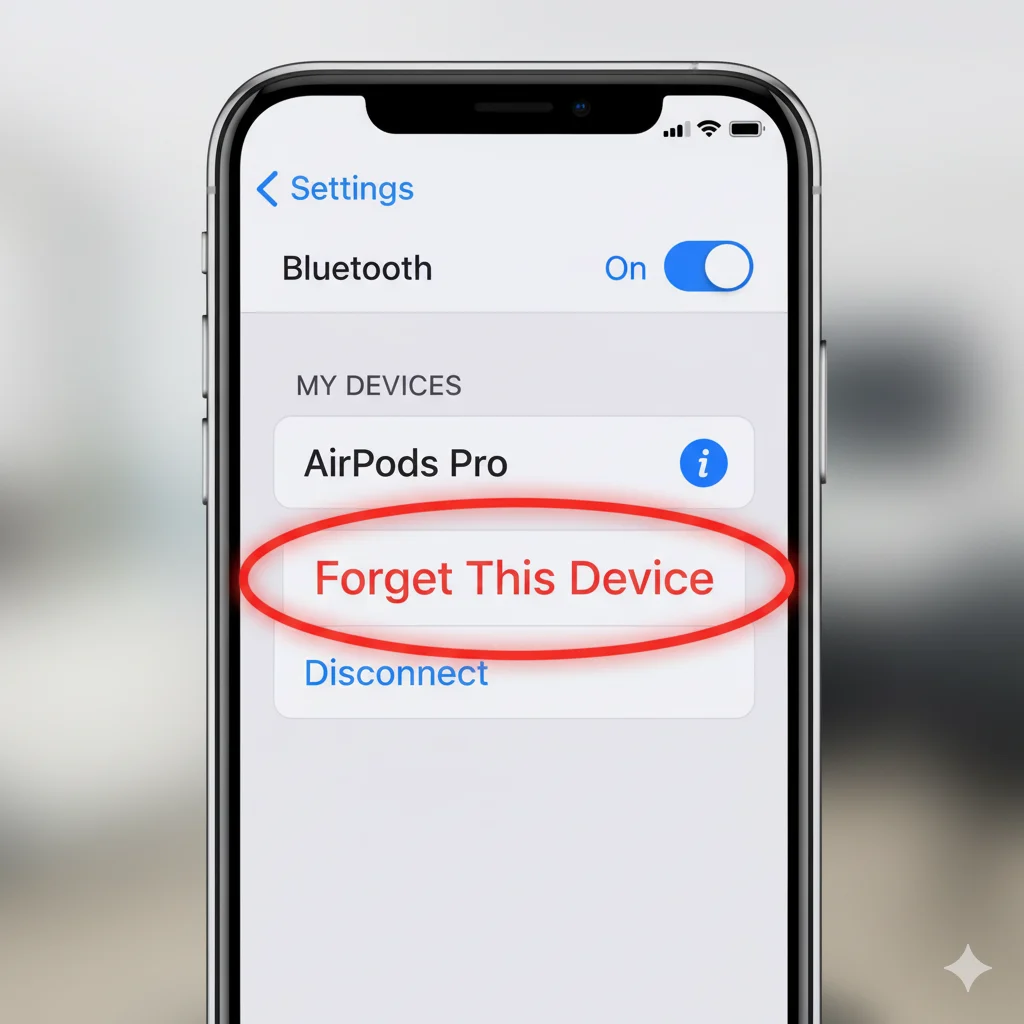
- Go to Settings → Bluetooth.
- Find your AirPods in the list and tap the ⓘ icon.
- Select “Forget This Device.”
Removing them from Bluetooth clears the connection and prepares your AirPods for a clean setup. If they’re paired to multiple devices, repeat the same step on each.
Step 3: Open the Case and Locate the Setup Button
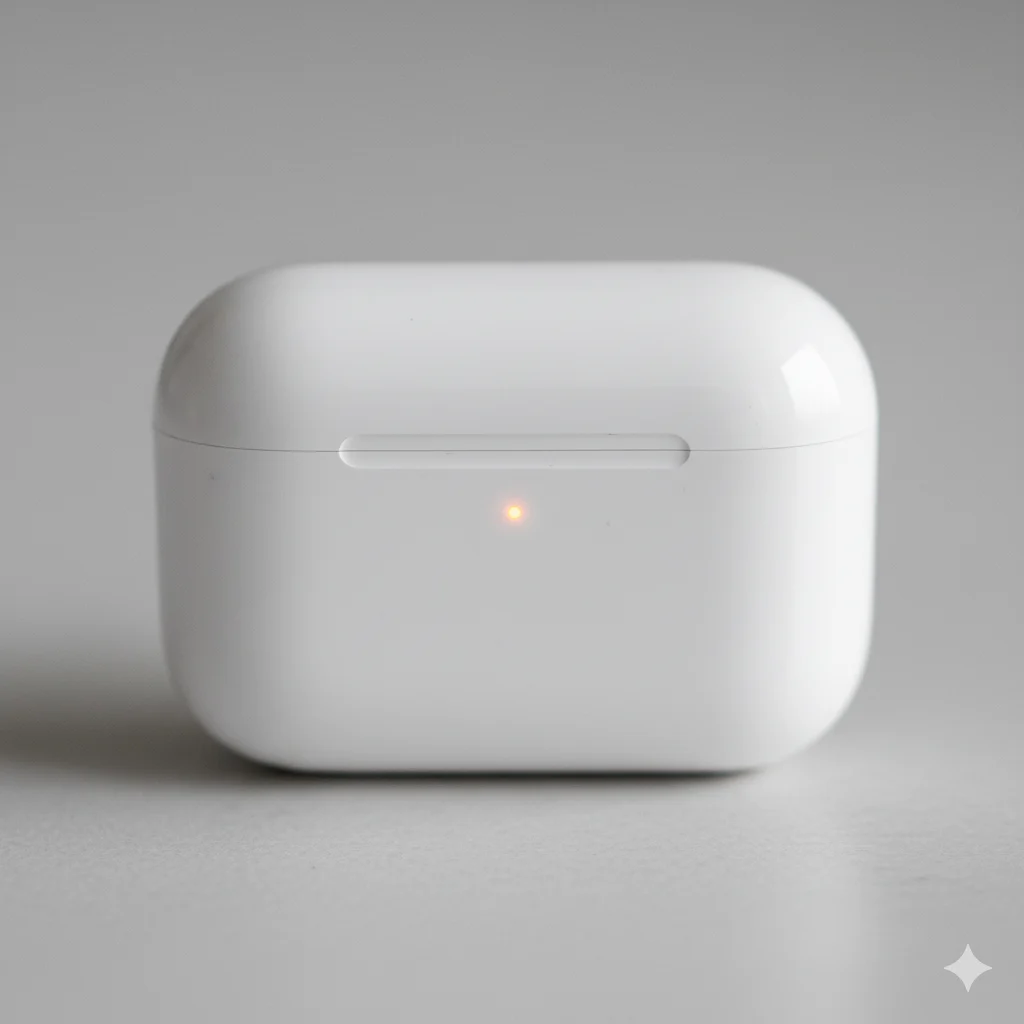
With your AirPods inside, open the lid of the charging case. Look for a small setup button on the back of the case.
For AirPods Pro and AirPods (2nd Gen or later), the status light is on the front; for earlier models, it’s inside the lid. You’ll need to use both the button and the light to complete the reset.
Step 4: Press and Hold to Reset
Press and hold the setup button for about 15 seconds—you’ll see the status light flash amber, then white. That’s your sign the AirPods are fully reset.
Once this happens, your AirPods have been restored to factory settings. They’re no longer linked to your Apple ID and can now be paired with any device as new.
Step 5: Reconnect Your AirPods
Keep the case lid open and hold it near your iPhone or iPad. A setup animation will appear on the screen—tap Connect, and follow the prompts.
For Android or Windows devices, simply go to Bluetooth settings, select “AirPods”, and pair them manually.
You’ll now have a clean, fresh connection.
Step 6: Test Audio and Controls
After reconnecting, play a song or video to confirm both earbuds work.
Check these functions:
- Play/Pause and skip gestures
- Noise cancellation or Transparency mode (for Pro models)
- Microphone clarity during calls
Everything sounding good? You’ve successfully reset your AirPods!
Visual Guide: See How It’s Done
(Here you can include a short GIF or infographic summarizing the button press, LED indicator, and pairing process.)
Pro Tips to Reset AirPods Better
- Keep your case lid open during the reset for accurate LED signals.
- Clean the charging contacts before resetting—dust can prevent proper pairing.
- Update your device’s OS before reconnecting to avoid firmware issues.
- If one AirPod still won’t sync, reset again with both earbuds in the case.
- When selling or gifting, remove the AirPods from Find My to unlink from your Apple ID completely.
Troubleshooting: When Things Don’t Work as Expected
Issue: The light doesn’t flash amber → Fix: Ensure the case is charged, open the lid, and hold the button longer (20 seconds).
Issue: AirPods don’t appear in Bluetooth → Fix: Turn Bluetooth off and on, restart your device, then try again.
Issue: Only one AirPod works → Fix: Clean both earbuds, make sure they’re seated properly, and repeat the reset.
Issue: Still linked to another Apple ID → Fix: Remove the AirPods from Find My using the original owner’s account.
Conclusion
Resetting your AirPods is fast, effective, and solves most performance or pairing issues. In just a few steps—charging, unpairing, holding the button, and reconnecting—you can restore perfect functionality.
Now that you know how to reset AirPods like a pro, you can keep them running smoothly or hand them off to someone else with confidence. It’s simple, clean, and takes less than a minute.
FAQ
Q1: Does resetting delete all settings?
Yes. It removes all custom settings like touch controls, noise modes, and pairing history.
Q2: Can I reset AirPods without an iPhone?
Absolutely—just hold the setup button on the case until the LED flashes amber, then white.
Q3: How often should I reset them?
Only when you face connection issues or before giving them away.
Q4: My AirPods won’t reset—what should I do?
Charge them for 15 minutes, clean the case, and try again with the lid open.
Q5: Do I need internet to reset?
No, resets are local—you only need Bluetooth when pairing again.